How to Use the Store Page
You can create Shouts or Ads directly from your product catalog. Pro & Agency users can generate and schedule a batch of promotional Shouts for 7, 14, or 30 days at once (one post per day with AI-optimized times).
Browse your entire product catalog and create Shouts and Ads from your connected store. We even make recommendations based on your inventory.
The Store page displays your connected product catalog. Browse products, generate shouts, and use inventory recommendations. Required: a connected store (Shopify or WooCommerce).
NOTE: You must have a Pro or Agency plan to create Ads or batch Shouts. Everyone can create a Shout from their connected store.

Sync, Batch Generate, & Sort
- Connection Status: If your store is connected you will see "[Your Store Name]" and an indication of when your store was last synced. Your store name is also a link to your store.
- Sync Now: Clicking the Sync Now button will manually sync your store so your inventory and product offerings match what's in your store.
- Create & Schedule a Batch of Shouts: (Pro & Agency plans) Click this button to generate multiple shouts from your catalog at once; see Create & Schedule a Batch of Shouts below.
- Search & Sort: Find the product you're looking for, or sort by inventory level, price, or name.
Inventory Recommendations
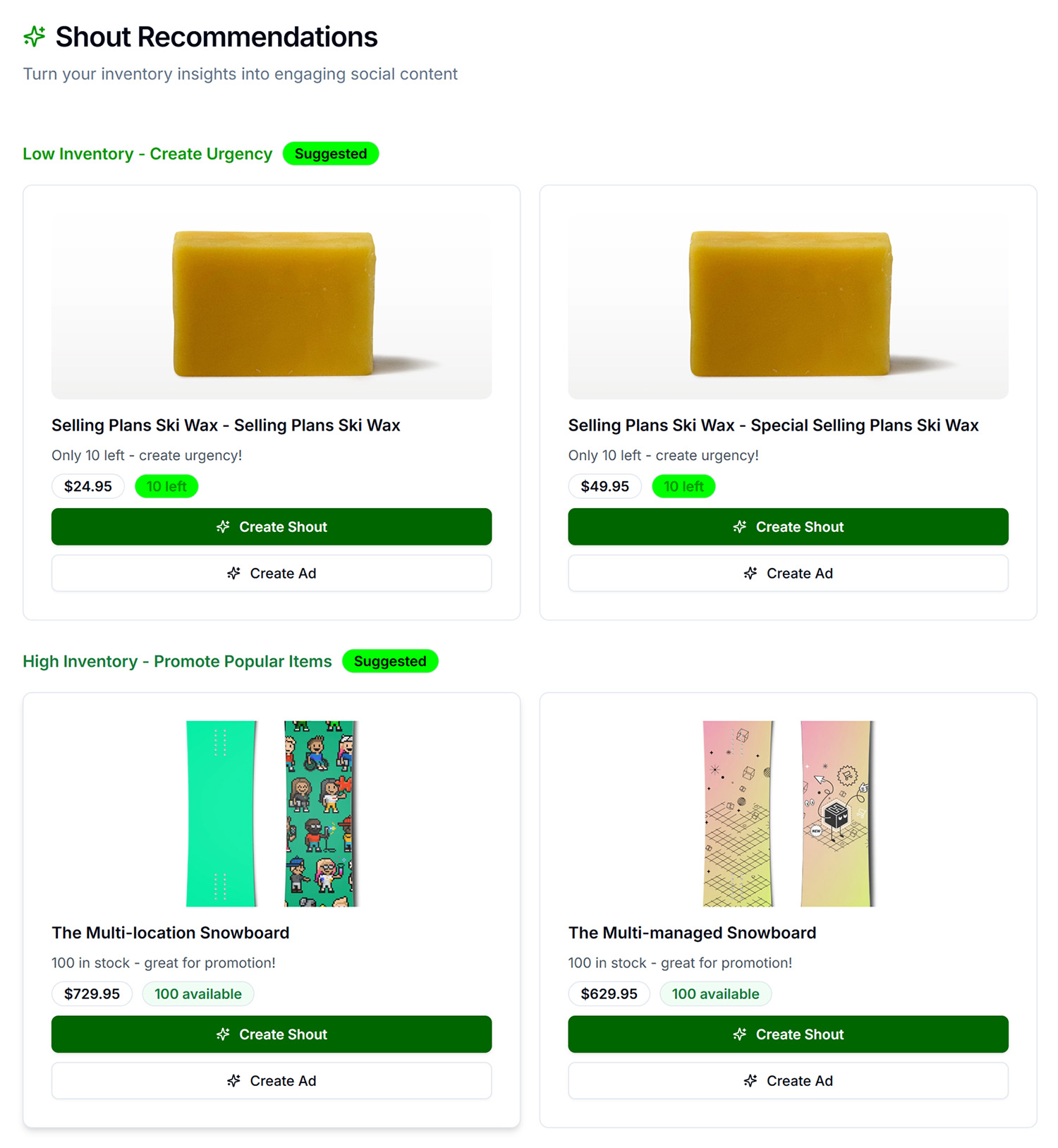
Recommendations are based on inventory levels, so you can highlight what is high or low in stock.
Creating Shouts or Ads from Products
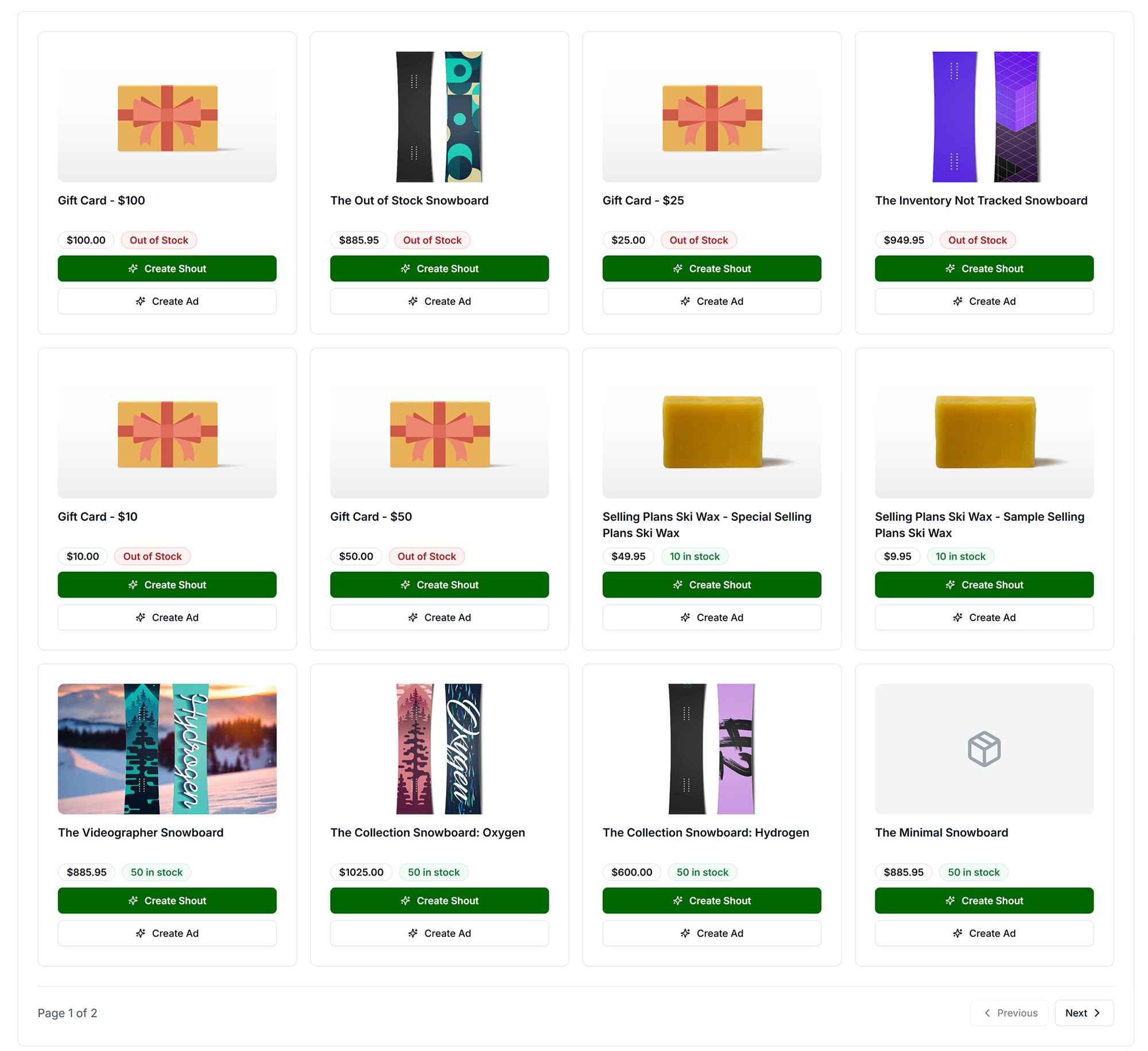
- Create a Shout from Your Product: Click "Create Shout" on a product. You will see a processing notification, then be taken to the Preview page where you can edit and finalize your Shout, then schedule it for publishing.
- Create an Ad from Your Product: If you are on a pro or Agency plan, you can click "Create Ad" on a product. You will see a processing notification, then be taken to the Preview page where you can edit and finalize your Ad, then download the assets or schedule it for publishing.
Create & Schedule a Batch of Shouts
The batch post feature lets you generate multiple promotional Shouts from your product catalog at once, with one Shout scheduled per day using AI-optimized posting times. This is ideal for planning a week, two weeks, or a month of product promotions with the click of a single button.
Prerequisites: Pro or Agency plan, a connected store with active products, and a synced catalog.
- How to use: Click the button, choose batch size (7, 14, or 30 days), select a start date, then click Start. The job runs in the background—you can continue using the app. You will receive an email when the batch is complete.
- Product selection: The system selects products from your inventory using a mix of high stock (~one-third), low stock (~one-third), and random (~one-third) from your catalog.
- Important: One batch at a time—you cannot start a new batch while one is in progress. Products with zero inventory are skipped.
This action can take a few minutes to complete. Once you start the process, you cannot stop it. You will receive an email when the batch is complete. While the batch is being processed, you can continue to work as usual.
If you try to schedule too many of the same type of Shout (like a promotional Shout from your store), the Shouts may be rejected. so don't batch schedule a bunch of posts for the same dates.
If your plan does not include this feature, you can upgrade your plan in the Billing tab.
Troubleshooting
- Store not visible: Connect your store in Account → Social & Brand Settings: Connect Shopify or Connect WooCommerce.
- No products: Wait for initial sync. Add products to your store. Clear filters.
- Create Shout disabled: Product may have no images or be out of stock. Reconnect store if connection expired.
- Batch button disabled or PRO+ badge: Plan does not include batch shouts—upgrade to PRO or higher.
- "A batch shout job is already in progress": Wait for the current job to finish (check email for completion).
- "No active products found": Sync your store first, then try again.
- "No active store connection found": Reconnect your store in Account → Social & Brand Settings → E-commerce Store.