Brand Settings
Configure brand identity, social media connections, connect your store, set up Email DNS and SMS sender, and customize AI prompts. (Social & Brand Settings tab)
The Social & Brand Settings tab controls your brand identity, social media connections, e-commerce store connection, Email CRM sender and DNS, SMS sender, and AI prompt customization. Required: Admin or Super Admin. Plans: All plans (Email & SMS require the Email CRM plan).
Accessing Brand Settings

- Log in to Get Shouting
- Click on your Display Name in the far right of the navigation bar
- If your role is Admin or Super Admin, you will see the Social & Brand Settings tab
New account users are automatically Super Admin
Your tab view will be different depending on your plan and role.
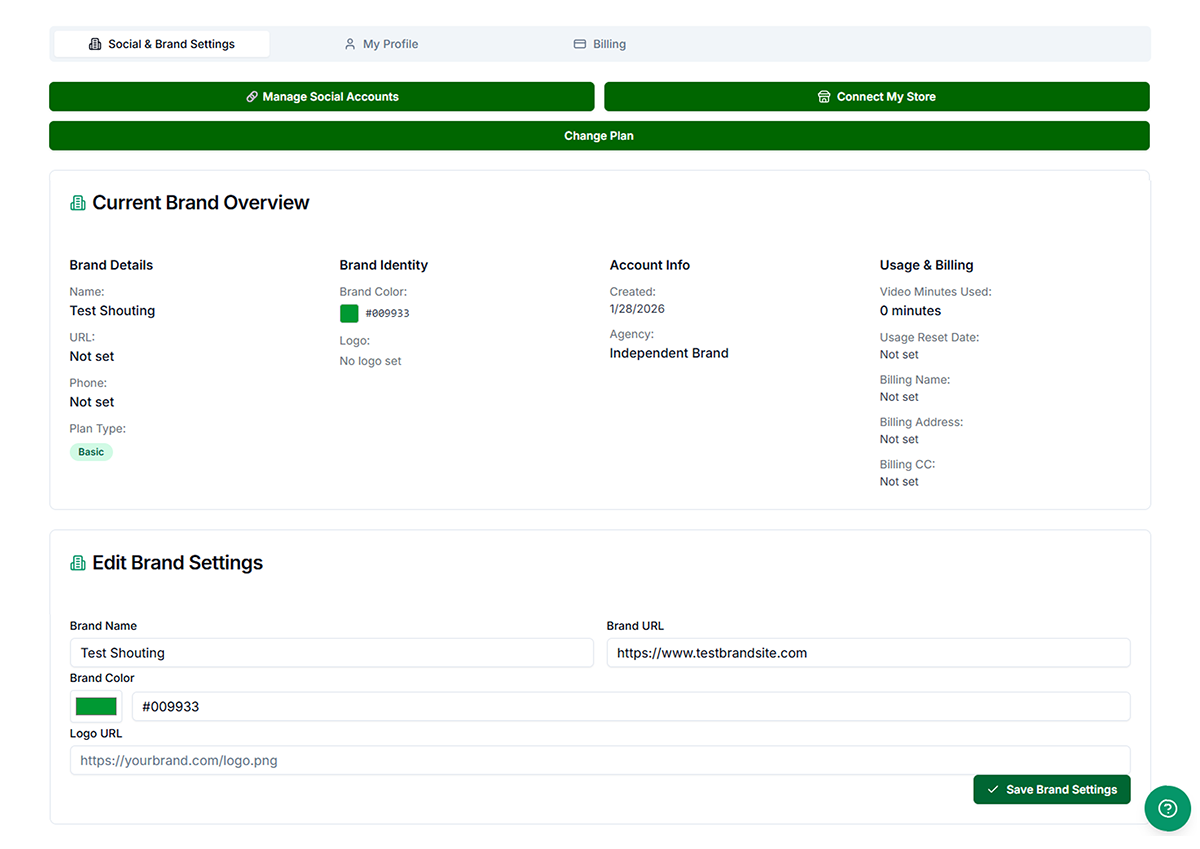
Super Admin users on the Basic plan will see something like this:
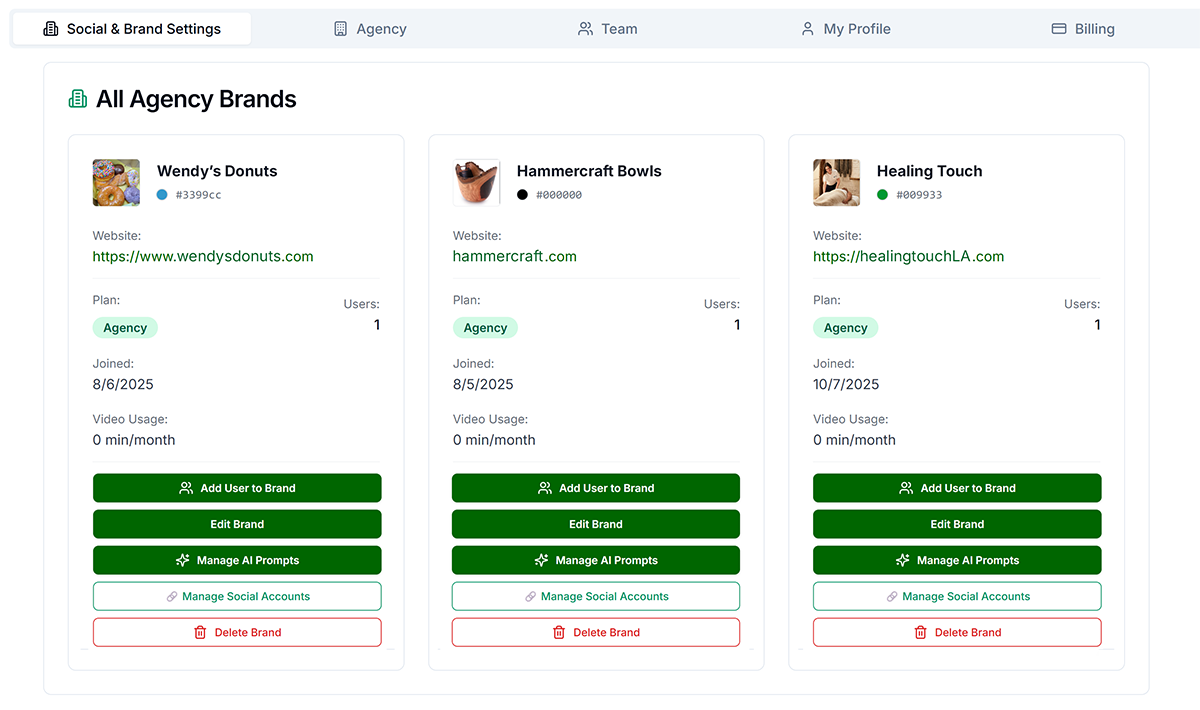
Super Admin users on an Agency plan will see something like this:
Brand Information
Brand information is used when we generate posts and ads. If you are on an Agency plan, all Brand information is siloed, so each Brand has its own unique Shouts, Ads, Inbox , Analytics, Asset Library, and custom AI prompts.
- Brand Name — Your business or store name (max 100 characters). Used in posts and AI-generated copy.
- Website URL — Your brand's website. Must include https:// or http://
- Brand Color — Your brand's main color as a hex code; e.g. #000000.
- Brand Logo URL — HTTPS URL to your logo. Recommended: 1500x1500px.
Changes auto-save after a brief delay.
SMS CRM Settings
When Email or CRM are enabled for your brand and plan, sender settings control how recipients see your brand on email and SMS. You probably want to set up your email DNS so recipients view the emails as coming from your brand and URL. To set up SMS for CRM, we just need a few things to stay within compliance.
- SMS sender / brand name — SMS may show a toll-free or registered sender and a display label where carriers and compliance rules allow. See Set up SMS sender.
SMS CRM Settings
When Email or CRM are enabled for your brand and plan, sender settings control how recipients see your brand on email and SMS. You probably want to set up your email DNS so recipients view the emails as coming from your brand and URL. To set up SMS for CRM, we just need a few things to stay within compliance.
- SMS sender / brand name — SMS may show a toll-free or registered sender and a display label where carriers and compliance rules allow. See Set up SMS sender.
Social Media Connections
Connect platforms via our 3rd party provider, Ayrshare (OAuth). Supported Platforms: Instagram, Facebook, TikTok, Pinterest, YouTube, Threads, Bluesky, X/Twitter, LinkedIn, and Google Business.
- Scroll to Social Media Connections
- Click Connect next to the platform
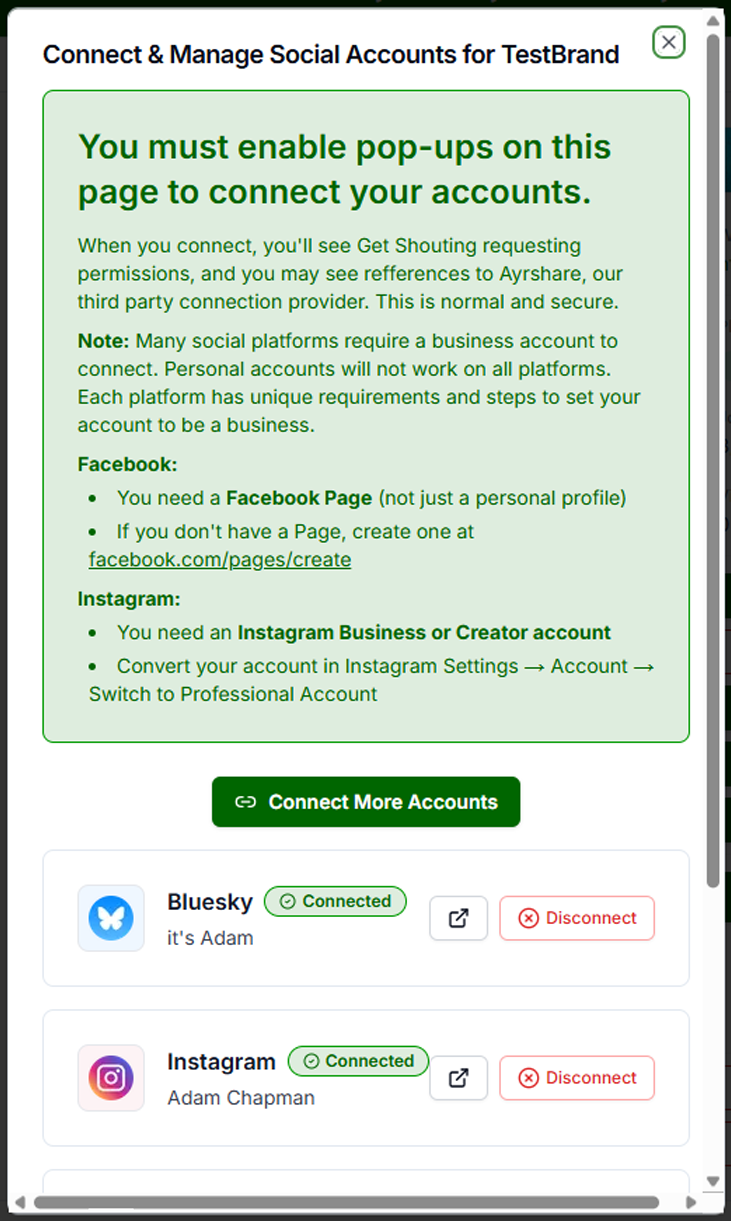
- You will see an informative overlay giving more information. You must have pop-ups enabled to connect accounts.
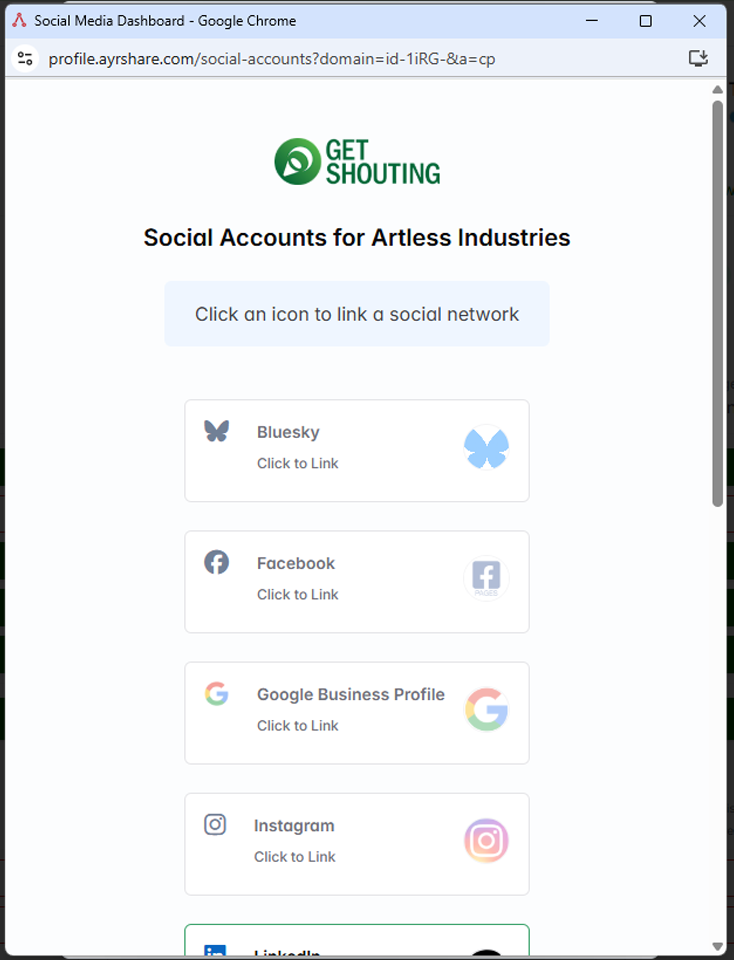
- Click Connect More Accounts to launch the pop-up and connect your accounts.
- You will then log into your various platforms to connect.
- Click Disconnect for any platform at any time.
- Close the windows to return to the page.
See How to Connect Social Accounts for detailed instructions.
Connect My Store
Admin & Super Admin users can connect their store to unlock Shout and Ad creation direct from their store inventory, as well as suggestions based on your inventory levels of different items.
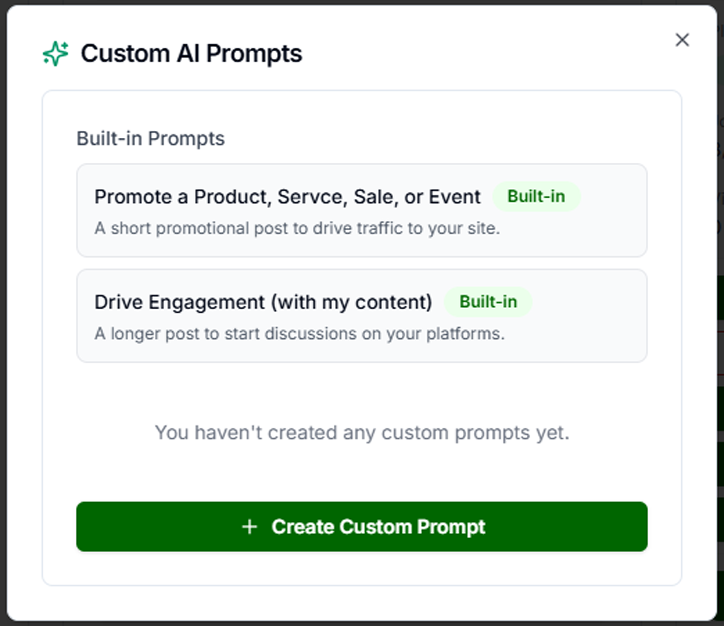
AI Prompts
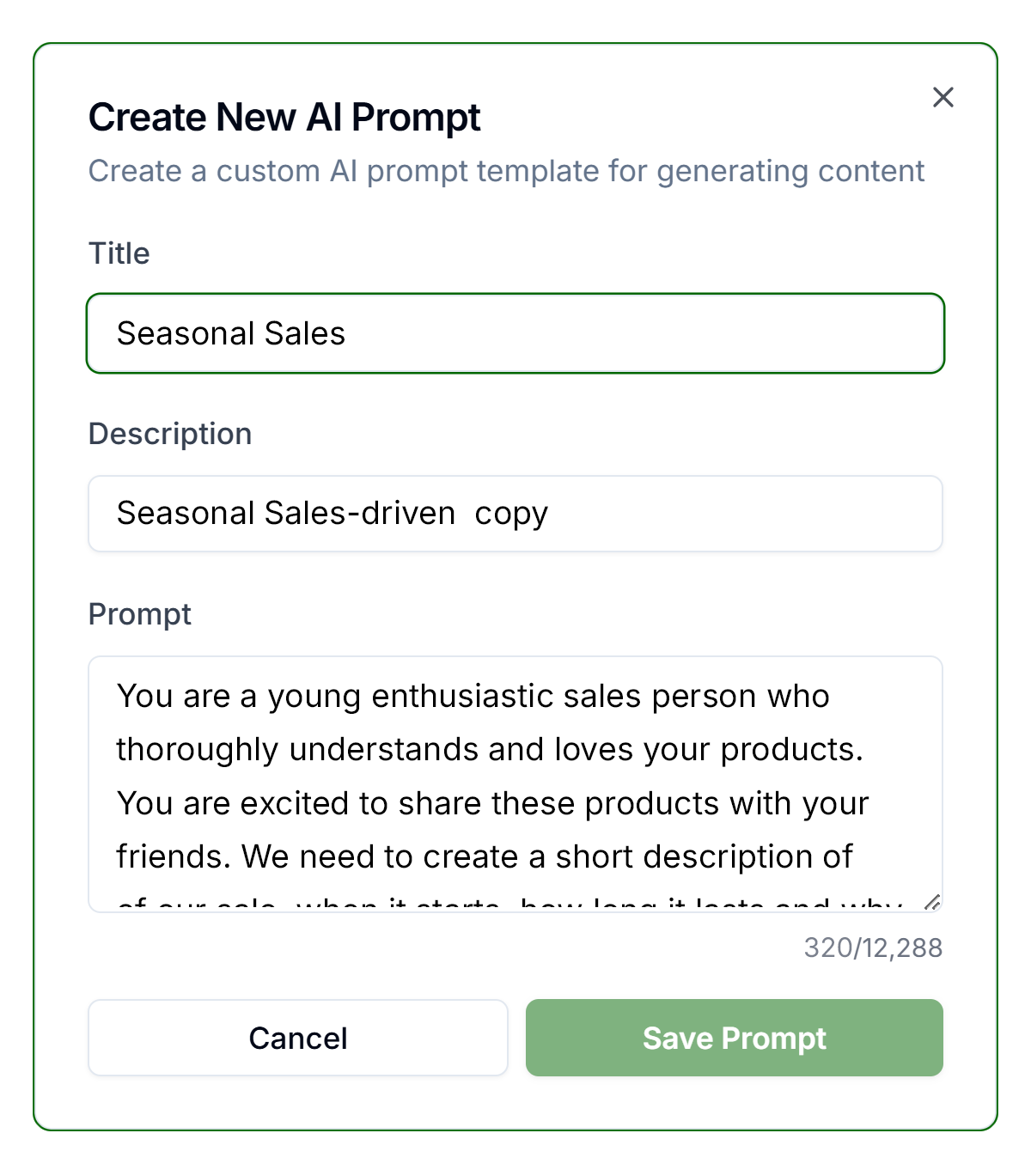
Pro & Agency users can create an unlimited number of customized AI prompts to guide content generation. Default prompts (Promote and Drive Engagement) cannot be deleted. Create custom prompts:
- Scroll to AI Prompts
- Click + Add Prompt or Create Prompt
- Enter Prompt Name and Prompt Text
- Click Save
You can edit or delete your prompts at any time.
Prompt creation and editing are also available in the Create Shout flow.
Use prompts when creating shouts from URL or Store; select from the AI Prompt dropdown.
Change Plan
- Change Plan — Click the Change Plan button to upgrade or downgrade your plan.
See the Billing tab section for detailed instructions.
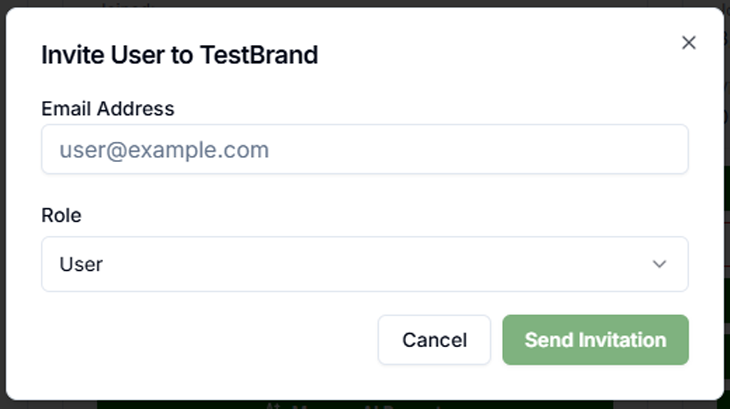
Add User to Brand
- Add User to Brand — This will launch an overlay that allows you to enter the e-mail of the person you want to invite to the given Brand.
Refer A Friend
- Refer a friend: Once they sign up with any annual/yearly plan, both of you will receive a free month!
- Click the button and enter your friend's email address. The code will automatically be mailed to them.
- Your friend will receive an email with a link to sign up. They will need to enter the code to redeem the free month.
- You will receive an email when your friend signs up and redeems the code.
- You will receive a free month when your friend signs up and redeems the code.
- You have a limited number of codes you can send out, so be sure to use them wisely.
- Referrals are also accessible in the Billing tab.
Troubleshooting
- Logo not showing: Use HTTPS (not HTTP). Upload to Imgur or Cloudinary if your host blocks mixed content.
- Social connection failed: Log into the platform first. Verify Admin permissions for Pages/Company Pages.
- Platform shows Connected but posts fail: Disconnect and reconnect. Authorization may have expired.