How to Use Schedule Selector
Choose when & where to publish. Select platforms, pick a date and time, and confirm.
After ensuring your Shout or Ad is just how you want it on the Preview page, click "Schedule My Shout" ("Schedule" or "Download & Schedule" in Ad mode) to open the Schedule Selector page. This is where you choose which platforms to publish to and when. This is Step 3 of 3 in the Create a Shout process.
Schedule Selector: Choose When & Where to Publish
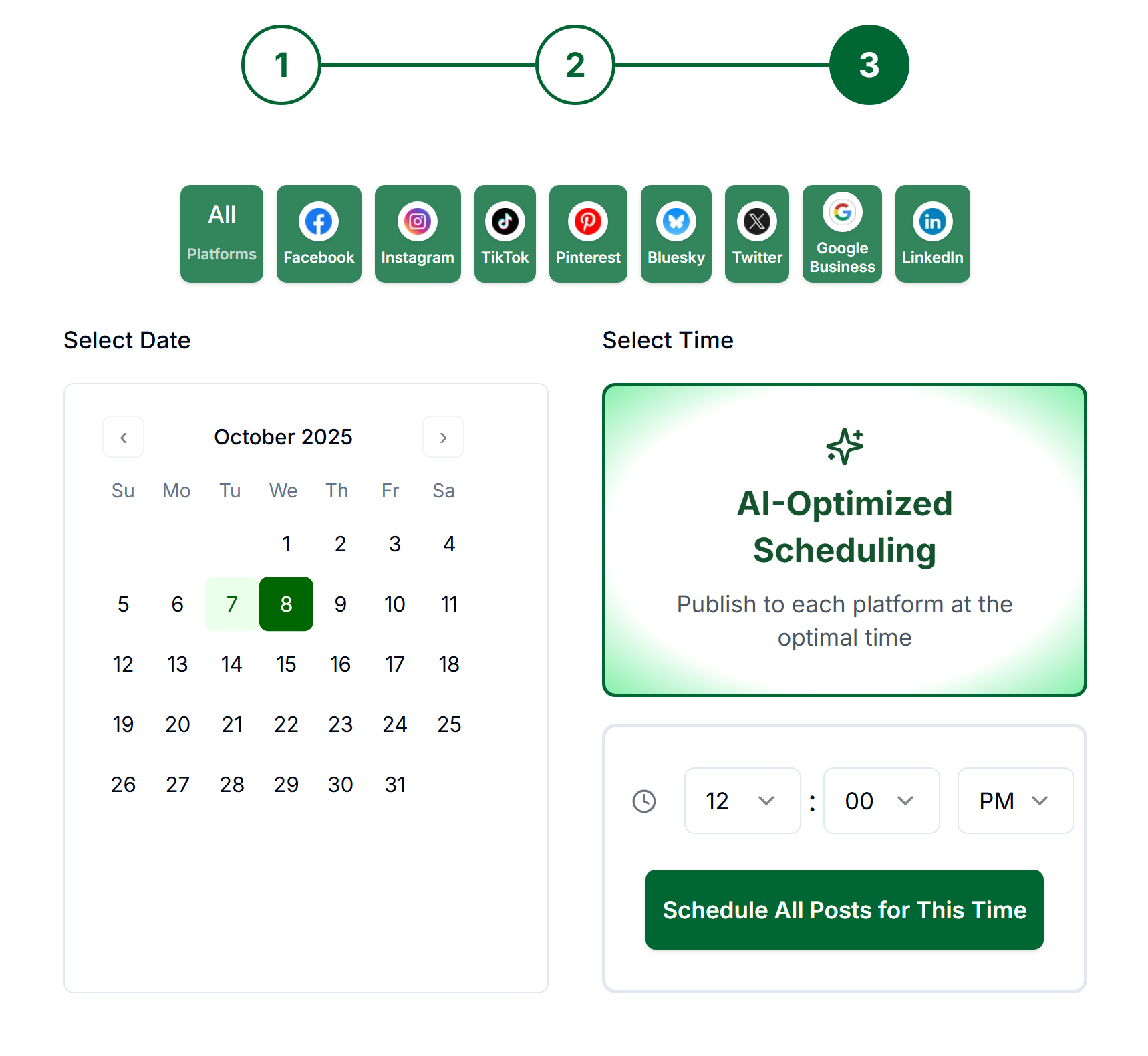
- Select Platforms Each listed platform is a button. We will only publish to the platforms you have activated. We default to all your connected platforms, and you can unselect any you don't want to publish to. If you haven't connected any platforms yet, you will get a warning message and can connect them from here. You can always add or remove platforms.
- Date Picker Select the date you want by clicking on the calendar. If there's a green dot next to a date, that means you have at least one Shout scheduled to be published on that day.
- AI-Optimized Scheduling Clicking this button will automatically publish your Shout at the best possible time on the selected date. NOTE: Different platforms have different optimal posting times, so if you are publishing to multiple platforms, they will go out at the optimal time for that platform, not necessarily at the same time.
Pressing this button will automatically package up all your posts and schedule them. You will be taken to the Schedule page, which provides a drag-and-drop calendar view of your scheduled posts. You can rearrange, delete, or edit the scheduling of your posts from this page. - Time Picker Select a specific time if you want all your posts to go out at the same time.
Pressing "Schedule All Posts for This Time" will automatically package up all your posts and schedule them. You will be taken to the Schedule page, which provides a drag-and-drop calendar view of your scheduled posts. You can rearrange, delete, or edit the scheduling of your posts from this page.
Troubleshooting
Scheduling fails
- Verify your social accounts are connected
- Check that you have permission to post to the selected platforms
- Ensure the selected date/time is in the future
- Detailed error messages should be visible if there are other issues.
No platforms available in Schedule Select
- Connect your social media accounts in Account settings
- Refresh the page
Posts don't appear on social platforms
- The most common cause for this is you have made the exact same (or similar) post to the same platform multiple times. Platforms tend to treat such actions as SPAM and will not publish them.
- Detailed error messages should be visible if there are other issues.
Next Steps
- Schedule Page — Manage your scheduled Shouts with our drag-and-drop calendar
- Preview Page — Edit your Shout until it's just how you want it
- Create a Shout — Create a new Shout from a URL, store products, or craft manually
- Create an Ad & Download Assets — Create a new Ad from your Asset Library, store products, or craft manually