How to Use Team Tab
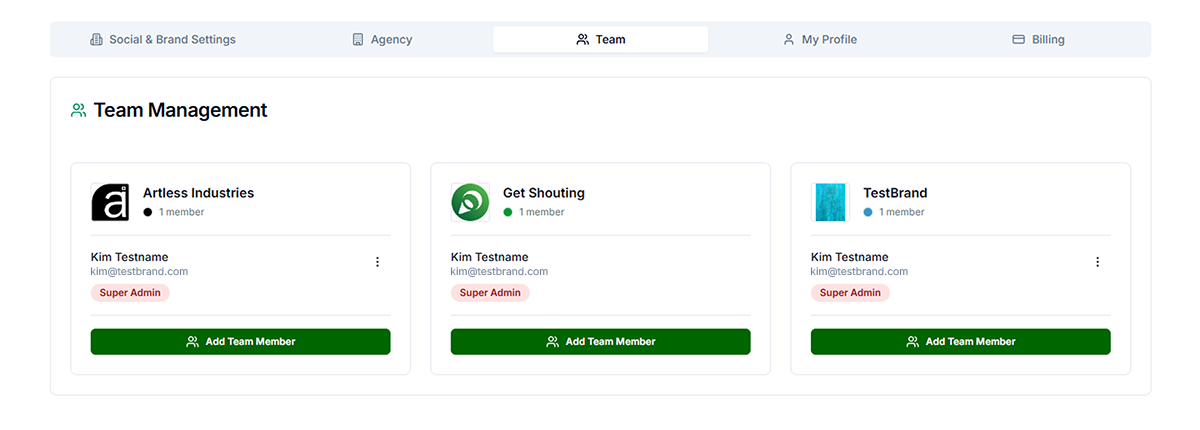
Invite users, change roles, and manage team members within your current Brand.
Required: Admin or Super Admin. Plans: Team, Agency, and Enterprise. Not available on Starter, Basic, or Pro (single user plans).
Accessing the Team Tab
- Click on your Display Name in the top right corner of the navigation bar
- Click the Team tab
Inviting Users
- Click + Invite User
- Enter Email Address and select Role (User, Admin, or Super Admin)
- Review seat cost notice — new users may incur additional seat charge; existing agency users do not
- Click Send Invitation
- User receives email; invitation expires in 7 days. Use Resend or Cancel as needed
Roles
- User — Create shouts, view analytics. Cannot change settings or invite users.
- Admin — All User permissions plus brand settings, social connections, invite users. Cannot manage billing or assign Super Admin.
- Super Admin — Full access. Only Super Admins can assign Super Admin role to others.
Managing Users
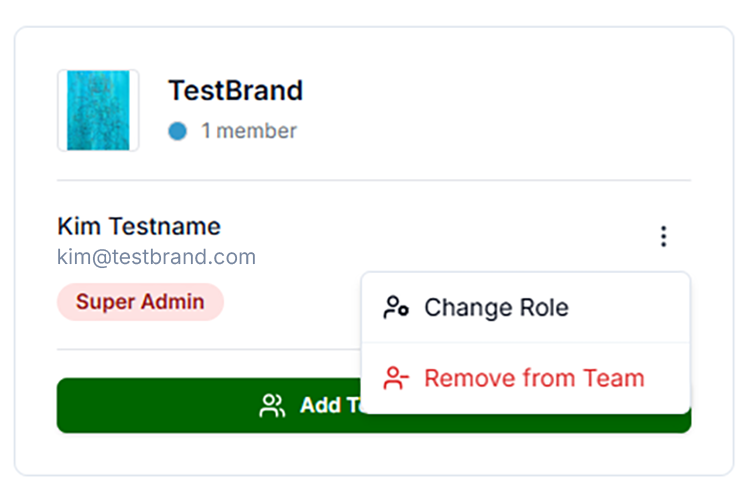
- Change role: Click role dropdown next to user, select new role, confirm
- Remove user: Click Remove/trash icon, confirm. User loses access but account is not deleted
- Cannot remove last Super Admin — Promote another user first
Troubleshooting
- Team tab not visible: Upgrade to Team, Agency, or Enterprise plan. Or you may be a User — contact Admin.
- Invitation not received: Check spam. Resend invitation. Verify email address.