How to Use My Assets
My Assets is your media library. Upload, rename, delete, and check usage on your entire media library. You can re-use images or videos in as many Shouts or Ads as you want.
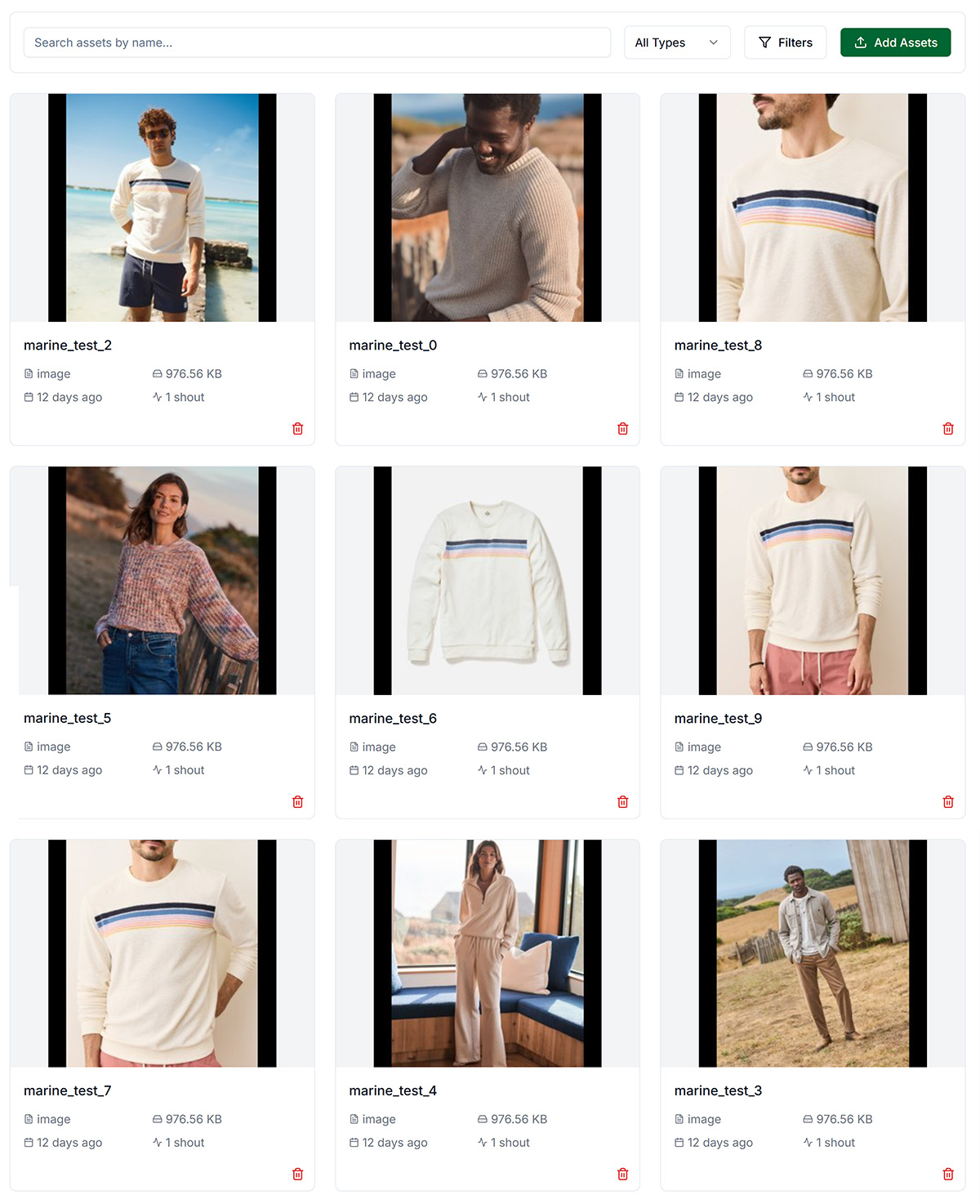
Uploading Assets
- Add Assets: Click Add Assets and the Upload Box will open. Supported: JPG, PNG (images); MP4 M (videos). Select from your computer or drag-and-drop files onto the Upload Box. All assets are automoatically formatted and sized for the platform you are publishing to once you add them to your Shout or Ad.
- Store: Product images may auto-import when you create a Shout or Ad from your store.
Managing Assets
- Rename: Click on the name of an asset and start typing. Assets can be renamed at any time and it will not affect Shouts or Ads using it.
- Delete: Removes from Library and from all shouts using it. Cannot undo.
- Filter/Sort: By type (Images/Videos), dimensions, date, processing status. Sort by Newest, Oldest, File Name, Size.
Using Assets in Shouts
In Preview: Click + Add Assets → Library → Select assets → Add Selected. Assets are reused (not duplicated). Or from Library: Click asset → Use in Shout → Taken to Preview with asset pre-loaded.
Storage and Video Processing
Basic and Pro plans have video quotas that are determined by the length of the video you upload. You can always purchase additional video processing time. Have your Admin or Super Admin check your Account → Billing for usage and to purchase additional time.
Troubleshooting
- Library empty: Upload assets. Clear filters.
- Upload fails: File size limit, unsupported format, storage quota exceeded.
- Thumbnail not showing: Video still processing. Refresh. Re-upload if failed.