How to Use Agency Tab
Manage multiple brands under one agency account with shared seat pools.
Required: Admin or Super Admin. Plans: Agency and Enterprise only. Not available on Starter, Basic, Pro, or Team plans.
Accessing the Agency Tab
- Click on your Display Name in the top right corner of the navigation bar
- Click the Agency tab
What You Can Do
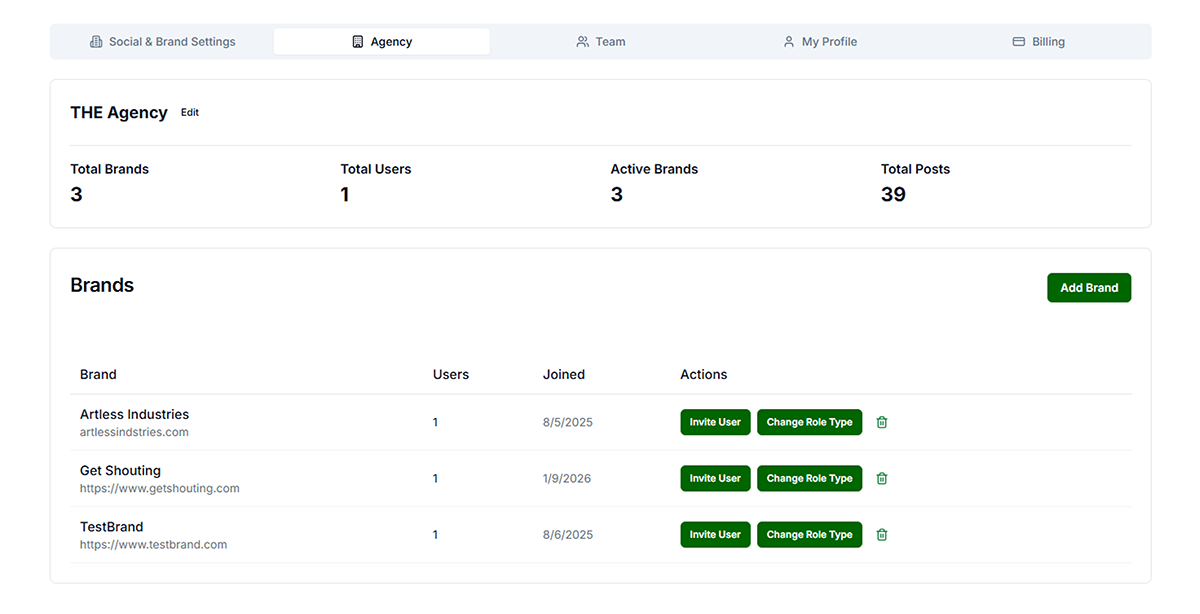
- View agency summary — Total Brands, Total Users, Active Brands, Total Posts
- Edit agency name — Click Edit next to the agency name
- Add brands — Add Brand button
- View brand details — Brand name, URL, user count, and joined date for each brand
- Invite users to a brand — Invite User button. New users incur seat charge; existing agency users do not (shared seat pool)
- Change role type — Change Role Type button for each brand
- Delete a brand — Trash icon to remove a brand from the agency
Seat Management
Agency plans share a seat pool across all brands. Each unique user (by email) counts as one seat. Users with access to multiple brands still count as one seat. Check Billing tab for seat usage.
Troubleshooting
- Agency tab not visible: Your plan must be Agency or Enterprise. Upgrade in Billing.
- Cannot invite user: Verify Admin/Super Admin role for that brand. Check seat limit in Billing.
- User cannot switch brands: Verify they accepted invitations to multiple brands. Log out and back in to refresh.