How to Create a Shout
A shout is a set of posts — one per social platform — sharing the same content theme. Create from URL, store, or manually.
Prerequisites
- A Get Shouting account
- Social media account(s) connected (Instagram, Facebook, LinkedIn, etc.) — required for publishing
- Optional: E-commerce store connected (e.g. WooCommerce) — for product-based creation
Ways to Create a Shout
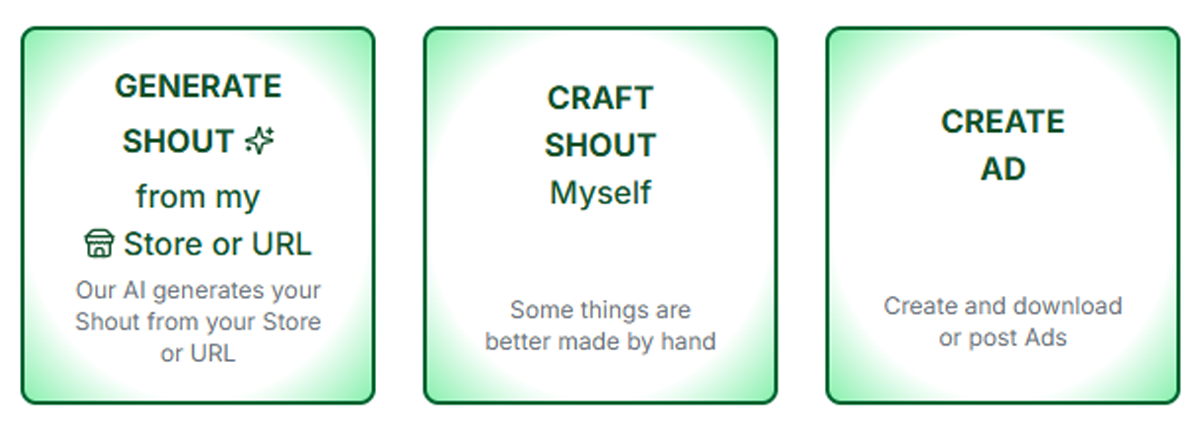
- Generate from URL — Scrape a product or page URL
- Generate from Store — Generate a Shout directly from your connected store products
- Craft Manually — Start from scratch with your own images and copy
- Create Ad — We cover Ads in How To Create an Ad & Download Assets
Method 1: Generate from URL
Use this when you have a product or page URL (from any website) to turn into social content.
- CREATE — Click the "+CREATE" button on the far left of the navigation bar
- Name Your Shout — Enter a Shout Name. This is auto-generated or you can enter a custom name.
- Shout Type — Choose the type of Shout you want to create. Pro & Agency users can create and edit custom AI prompts.
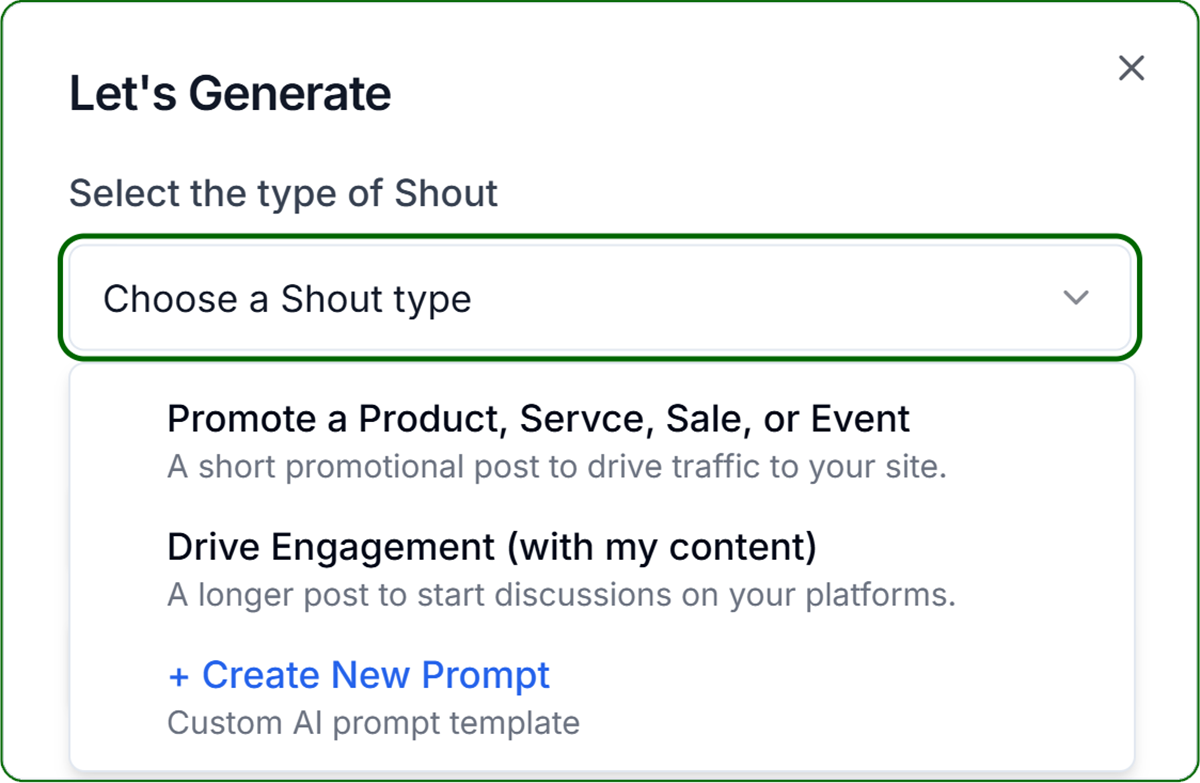
- In the URL field, enter the full URL of the product or page
- Click Generate
A progress overlay will show. Get Shouting analyzes the URL, extracts relevant images and text, and generates suggested copy. When complete, you'll be taken to the Preview page. - See How to Use Preview and Schedule for customizing and scheduling.
Method 2: Generate from Store
Use this when you have a connected e-commerce store and want to promote a specific product.
- Make sure your store is connected and you can see the "My Store" link in the main navigation.
If you don't see the "My Store" link, you need to connect your store in the Account → Social & Brand Settings tab. - CREATE — Click the "+CREATE" button on the far left of the navigation bar
- Name Your Shout — Enter a Shout Name. This is auto-generated or you can enter a custom name.
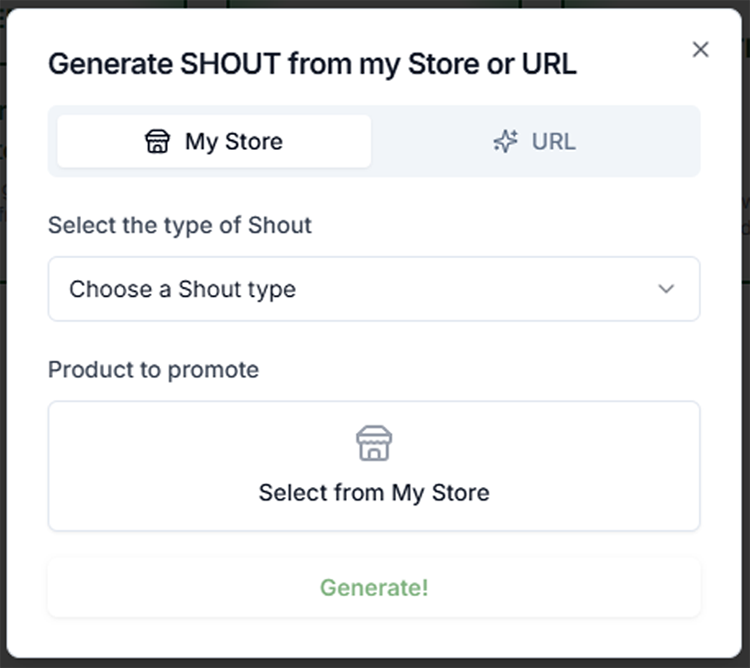
- Click Generate Shout from Store or URL
- Make sure My Store is selected in the picker
- Shout Type — Choose the type of Shout you want to create. Pro & Agency users can create and edit custom AI prompts.
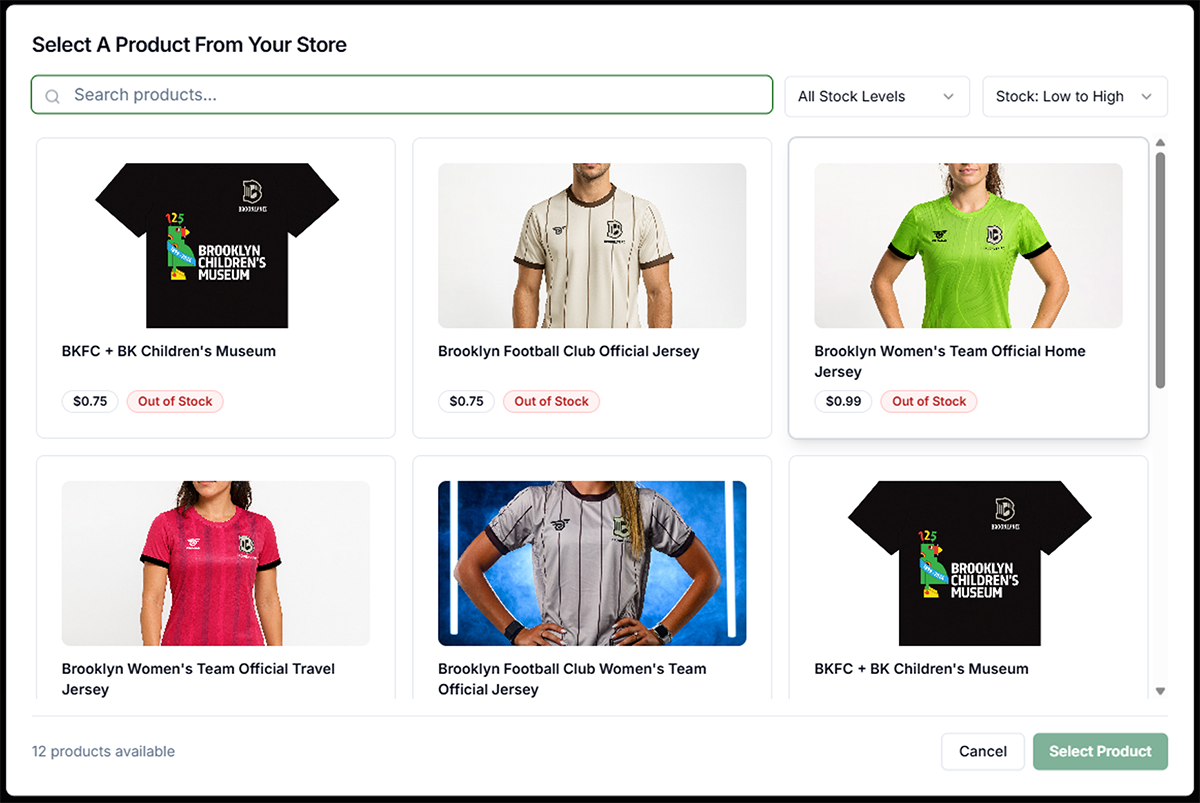
- Click Select from My Store and browse or search for the product you want to promote. You may see suggested products from inventory alerts.
- Click Generate
A progress overlay will show. Get Shouting analyzes the URL, extracts relevant images and text, and generates suggested copy. When complete, you'll be taken to the Preview page. - See How to Use Preview and Schedule for customizing and scheduling.
Method 3: Craft Manually
Use this when you want to create content from scratch with your own images and copy.
- CREATE — Click the "+CREATE" button on the far left of the navigation bar
- Name Your Shout — Enter a Shout Name. This is auto-generated or you can enter a custom name.
- Click Craft Manually This will take you directly to the Preview page with an empty Shout
- Upload Images, Videos, or select from your Library or Store — Click the text in the center of your image previewer or the "+" icon in the top right of the image previewer
- See How to Use Preview and Schedule for customizing and scheduling.
Preview and Schedule
After creating your Shout, you'll automatically be taken to the Preview page. See How to Use Preview and Schedule for detailed instructions on customizing assets, copy, selecting platforms, and scheduling your shout.